

How to update and export price table?
This guide explains how to update prices in your price table, both by percentage and fixed amount. It also covers how to export the updated price table.
Click on Inventory
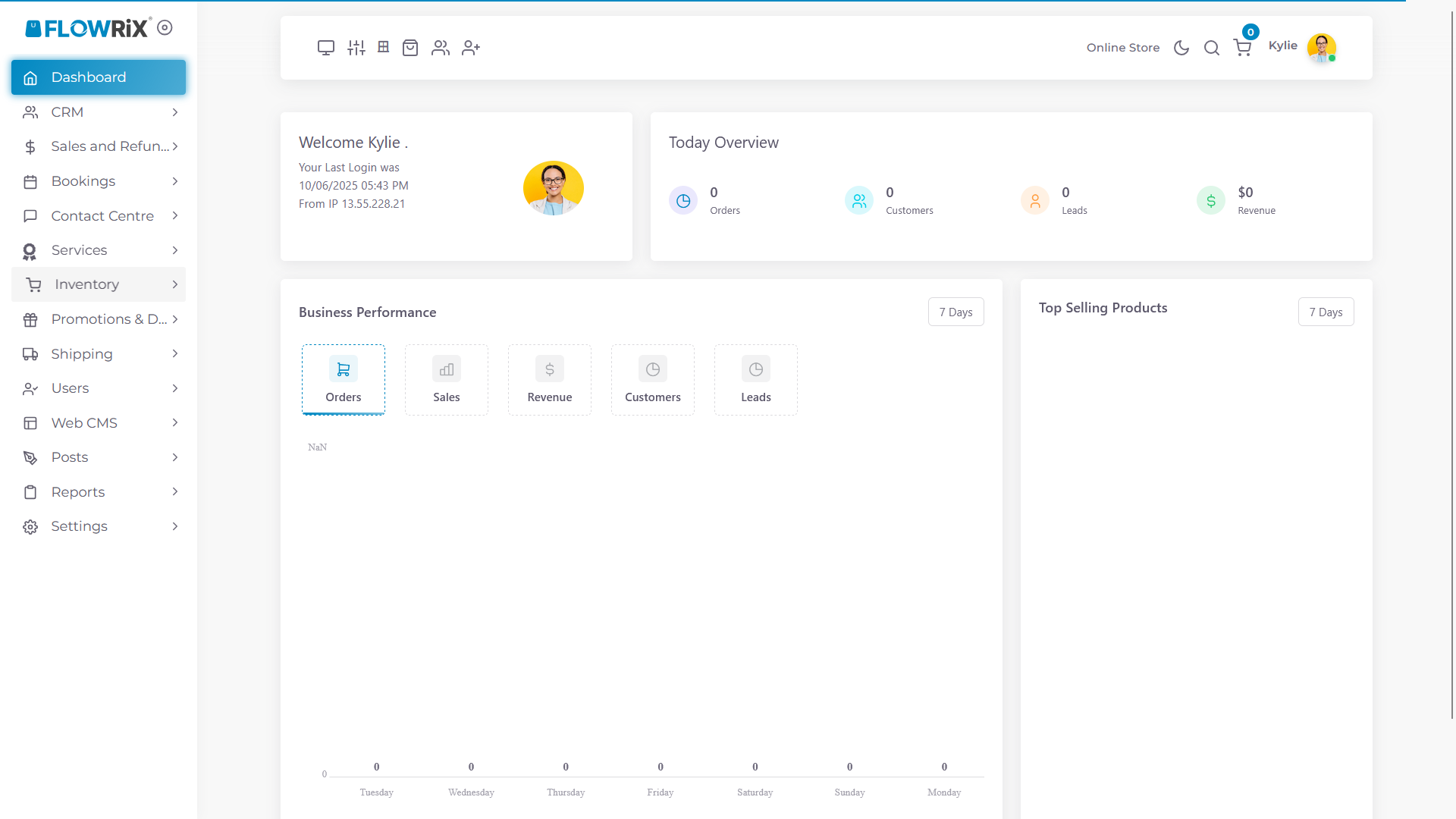
Click on Price Groups. You can also export the price table from the pricing tab under custom product.
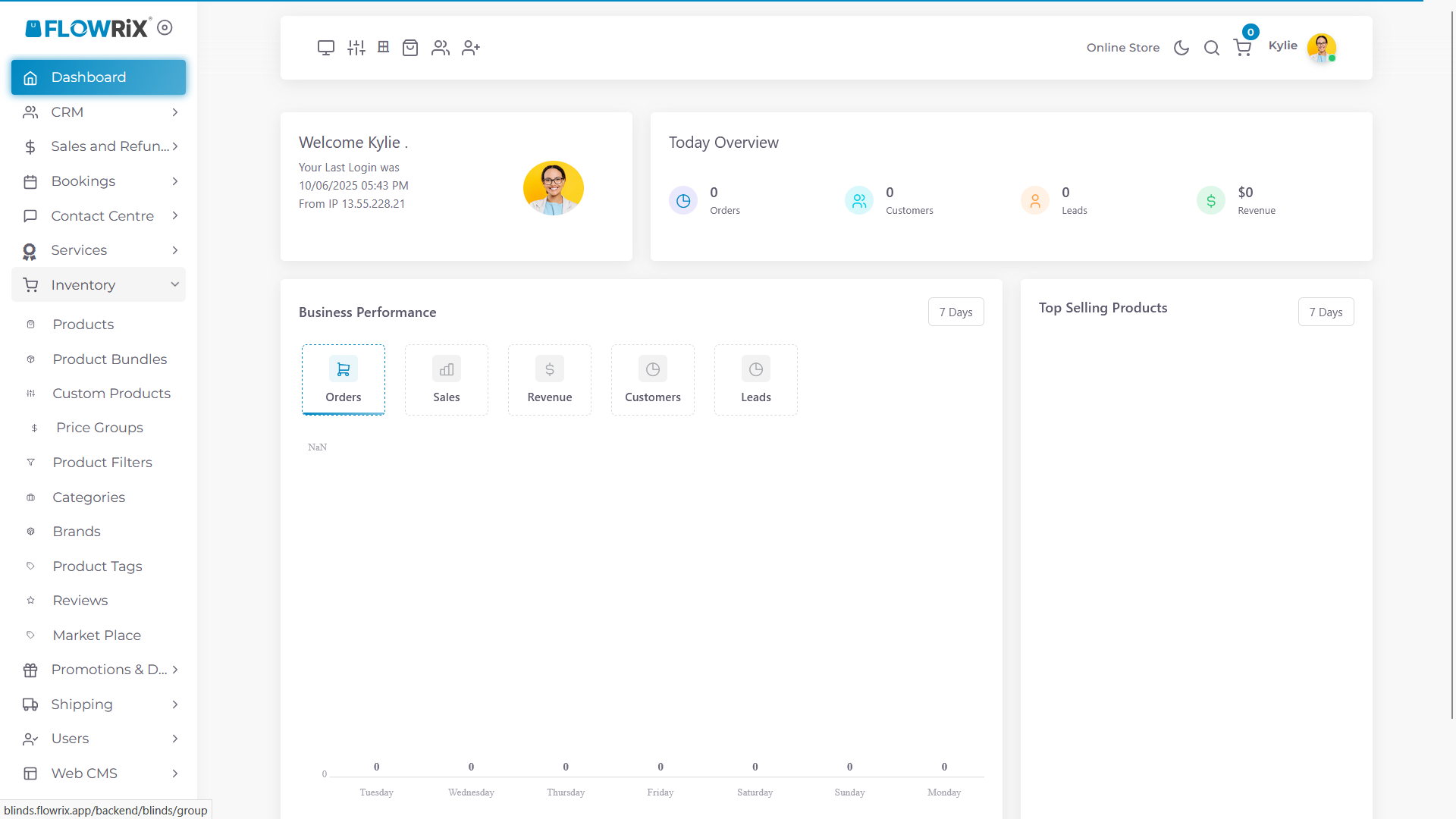
Click on the File Icon
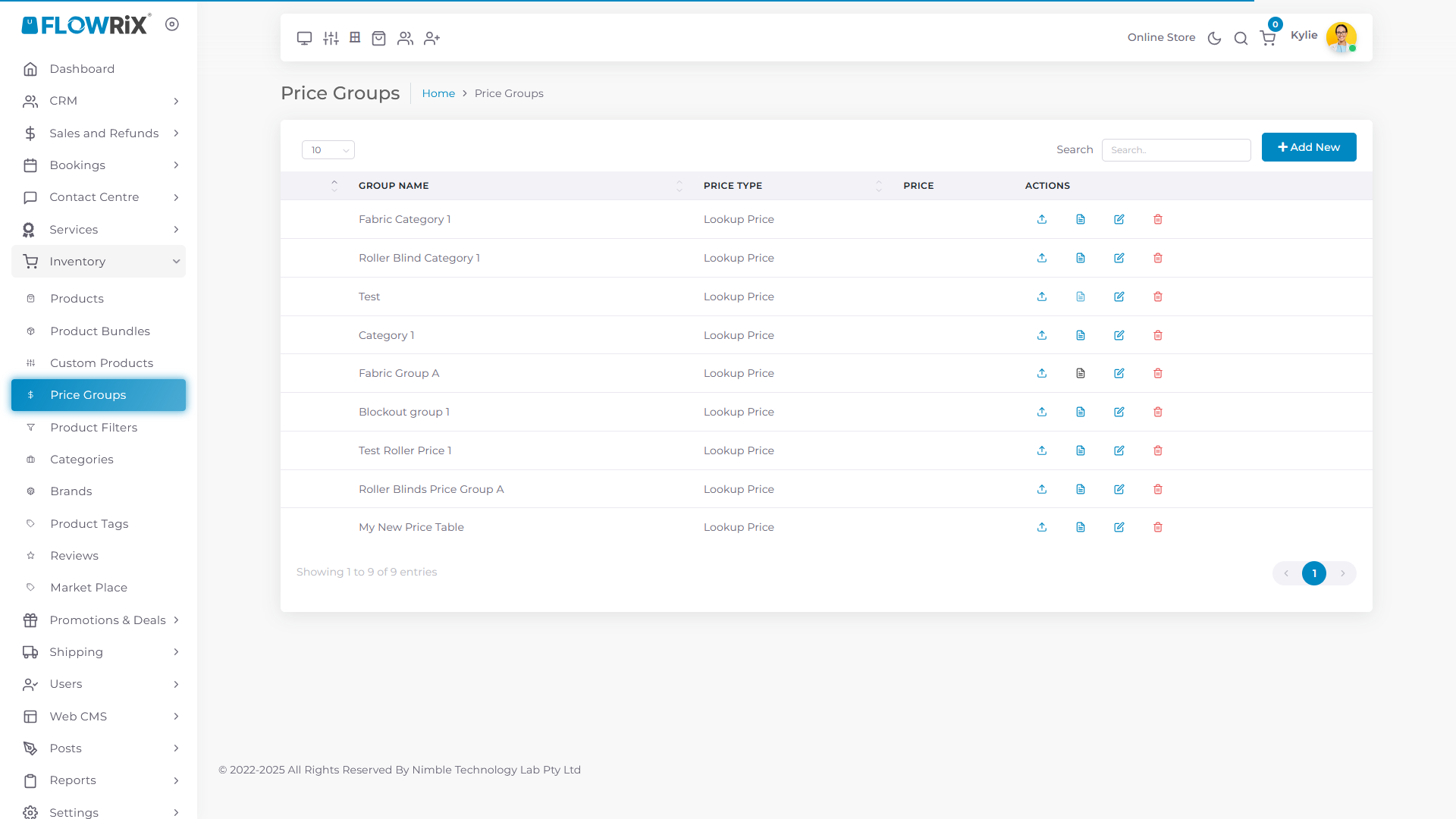
Click on Update Price Table
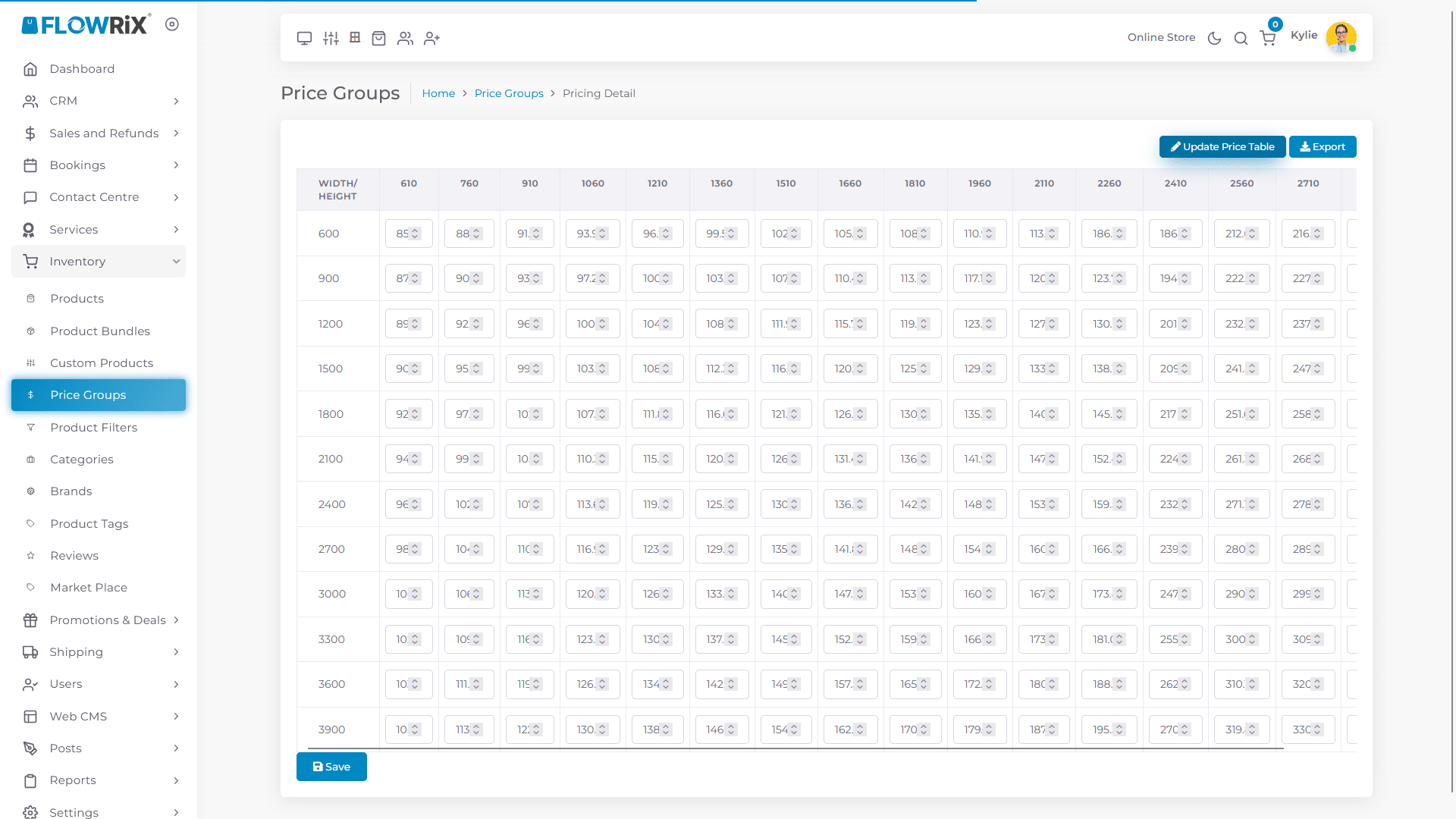
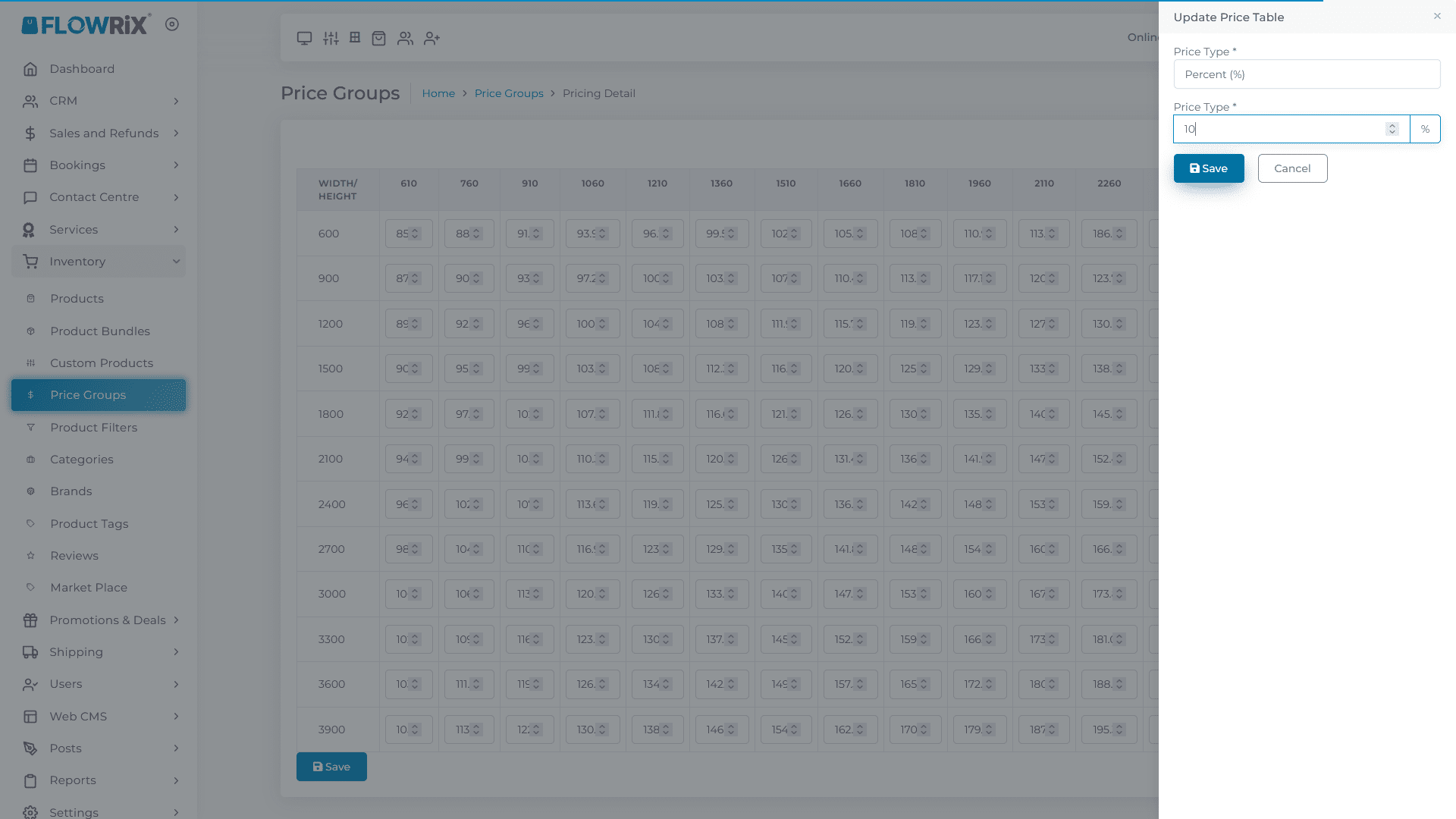
Type ten to update price by ten percent and click Save. Use minus with the value to reduce price.
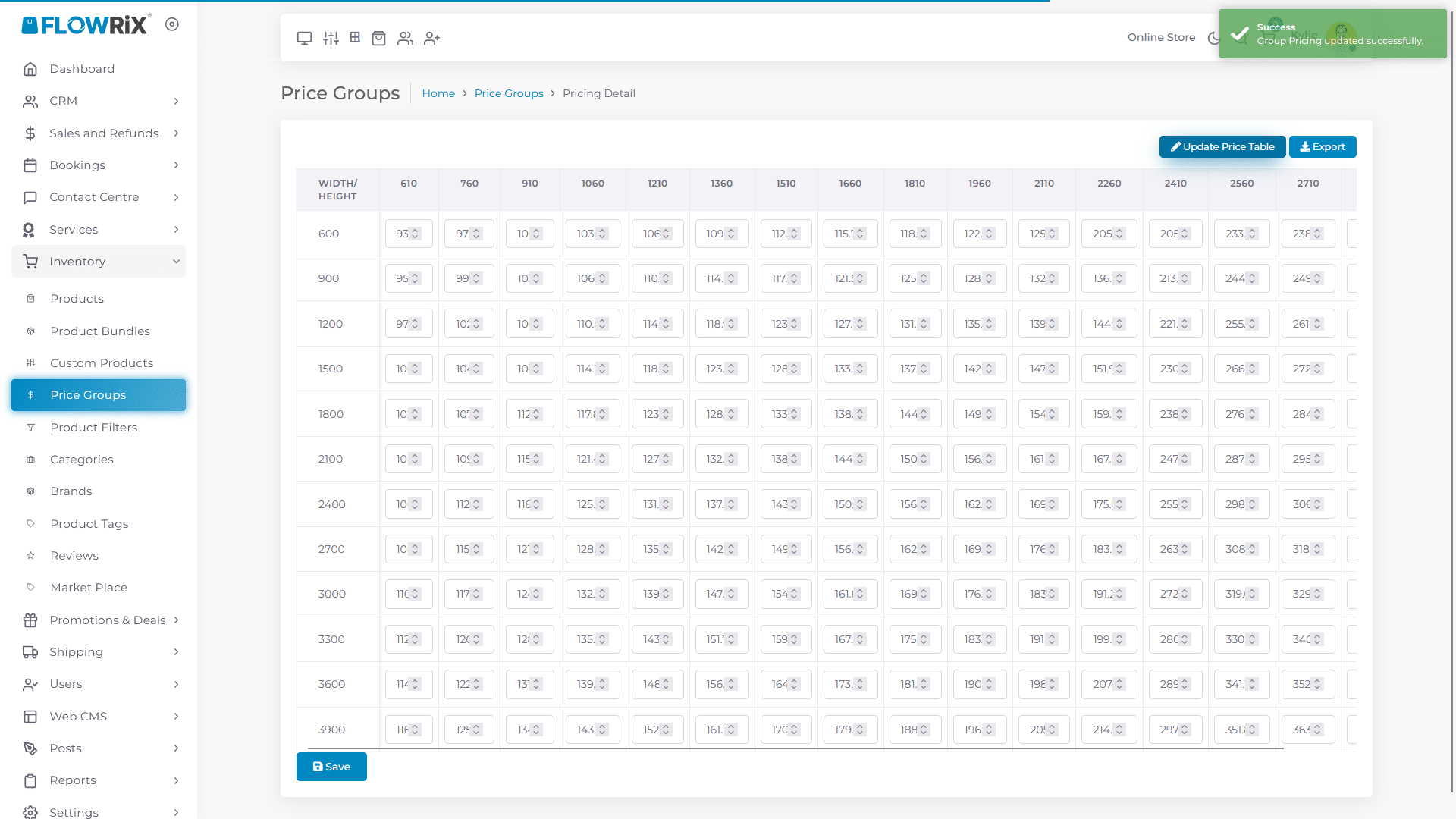
Click on Update Price Table again
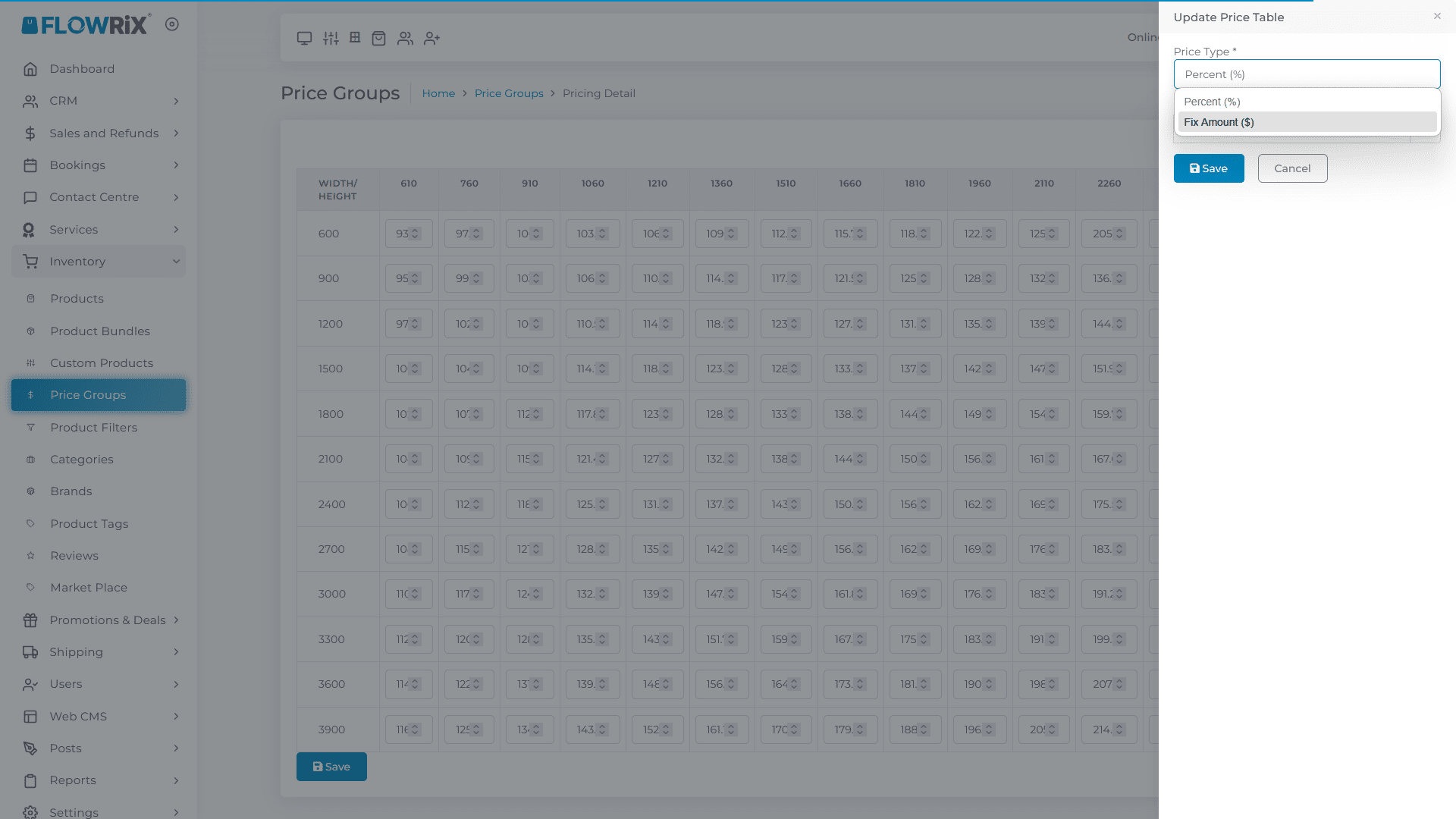
This time change the price type from percent to Fixed Amount
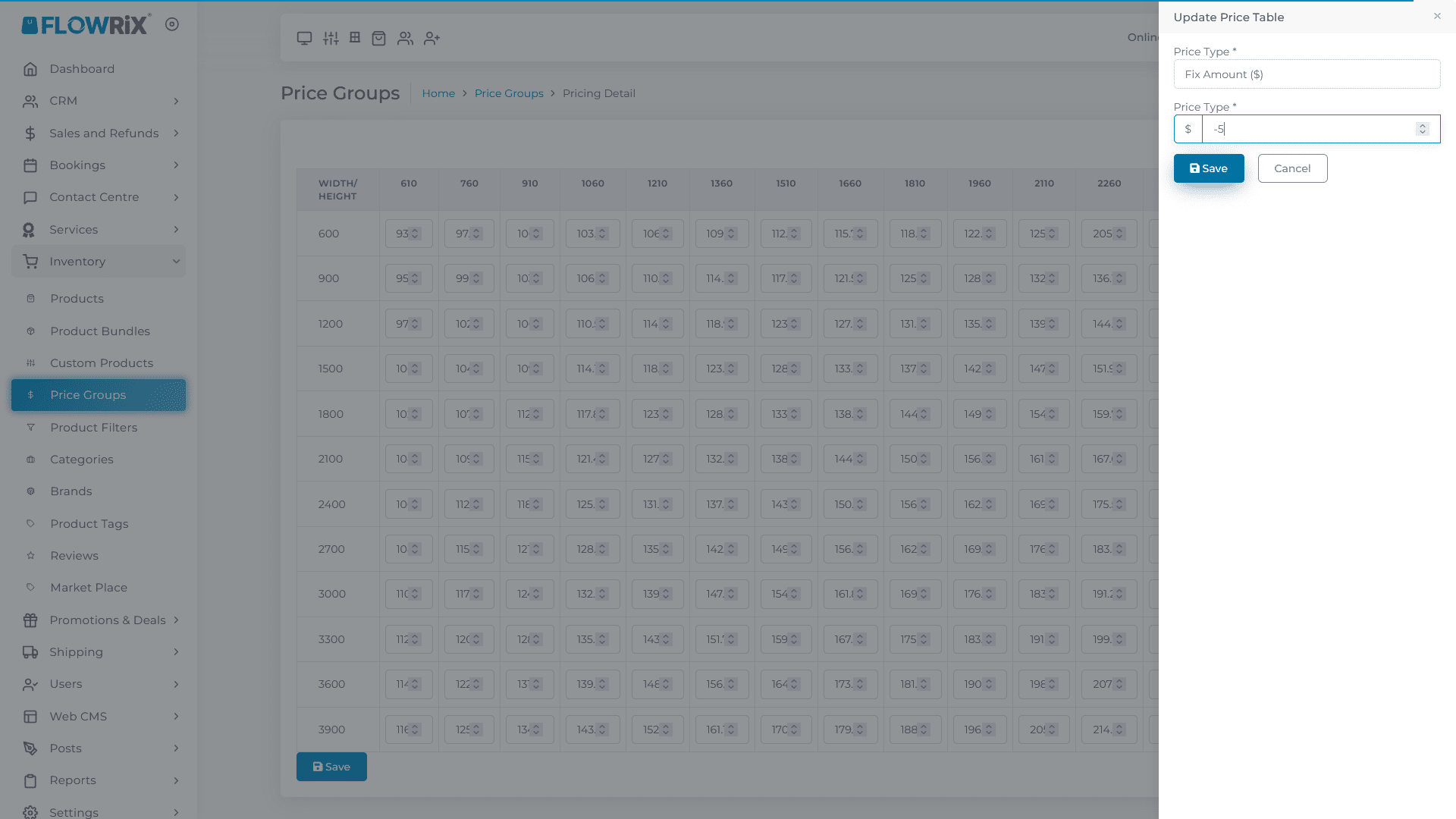
Type Minus Five to reduce price by five dollar on each cell.
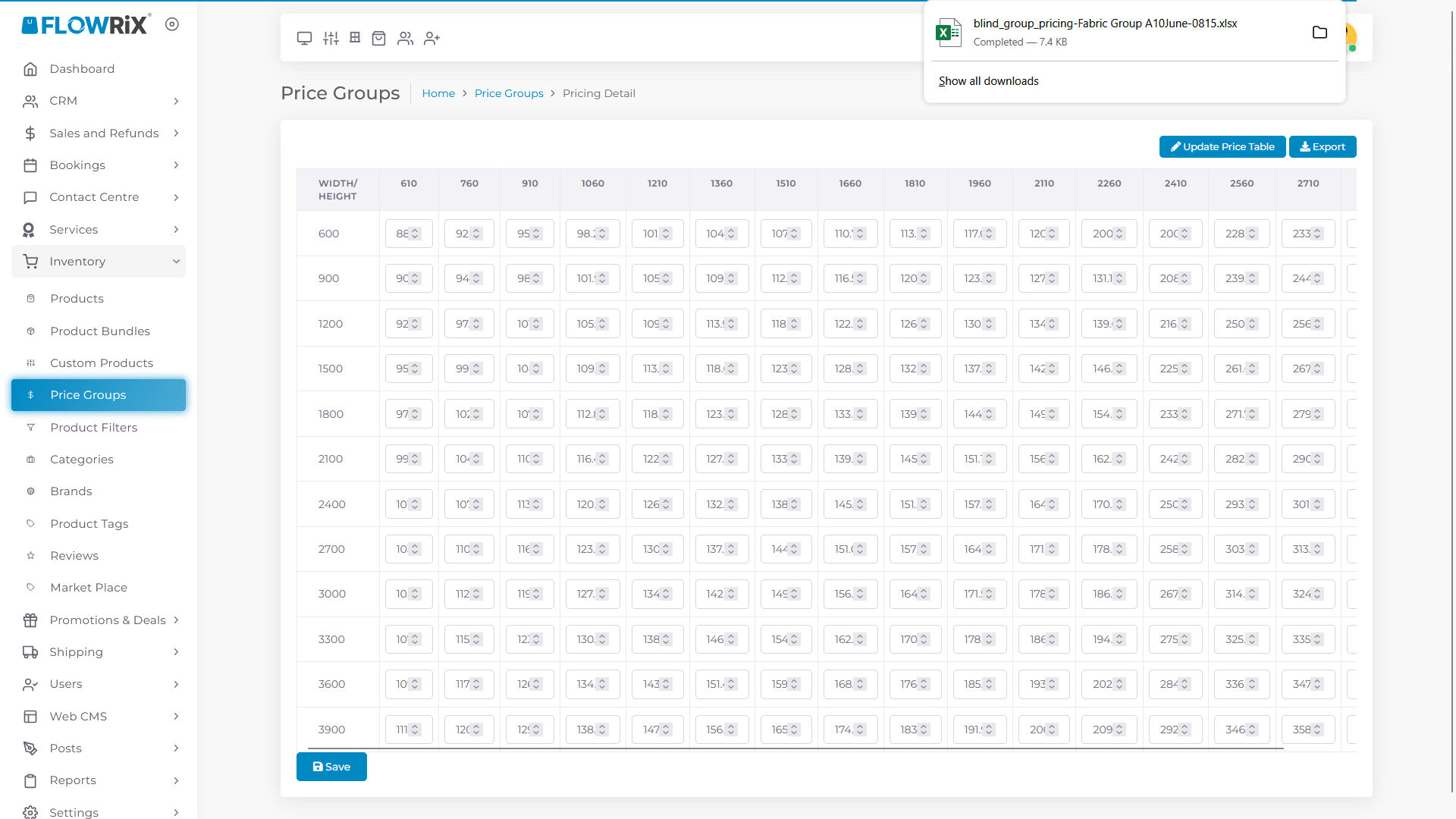
Click on Export to export price table as Excel file
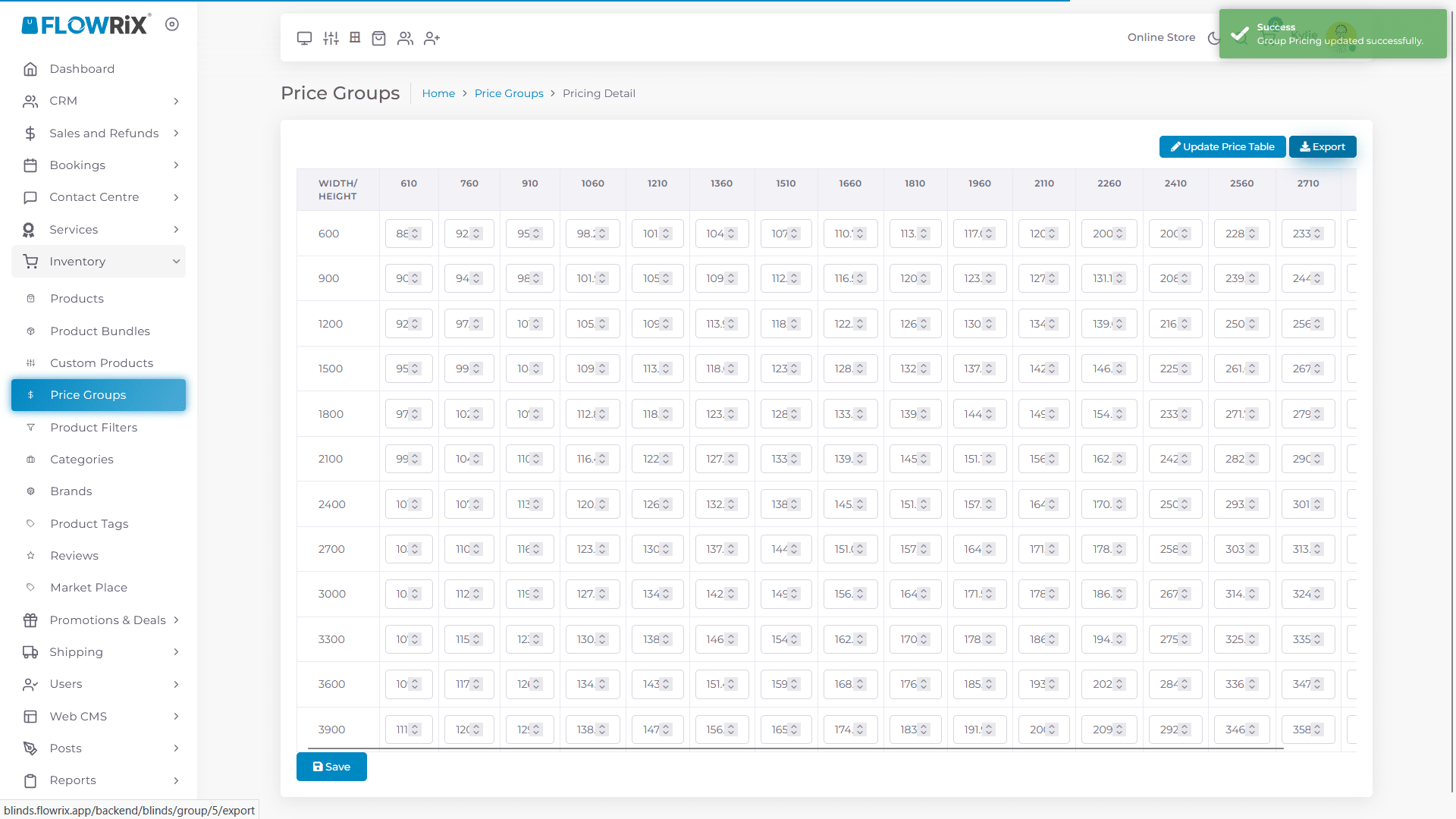
Click on Excel file to view the exported price table.
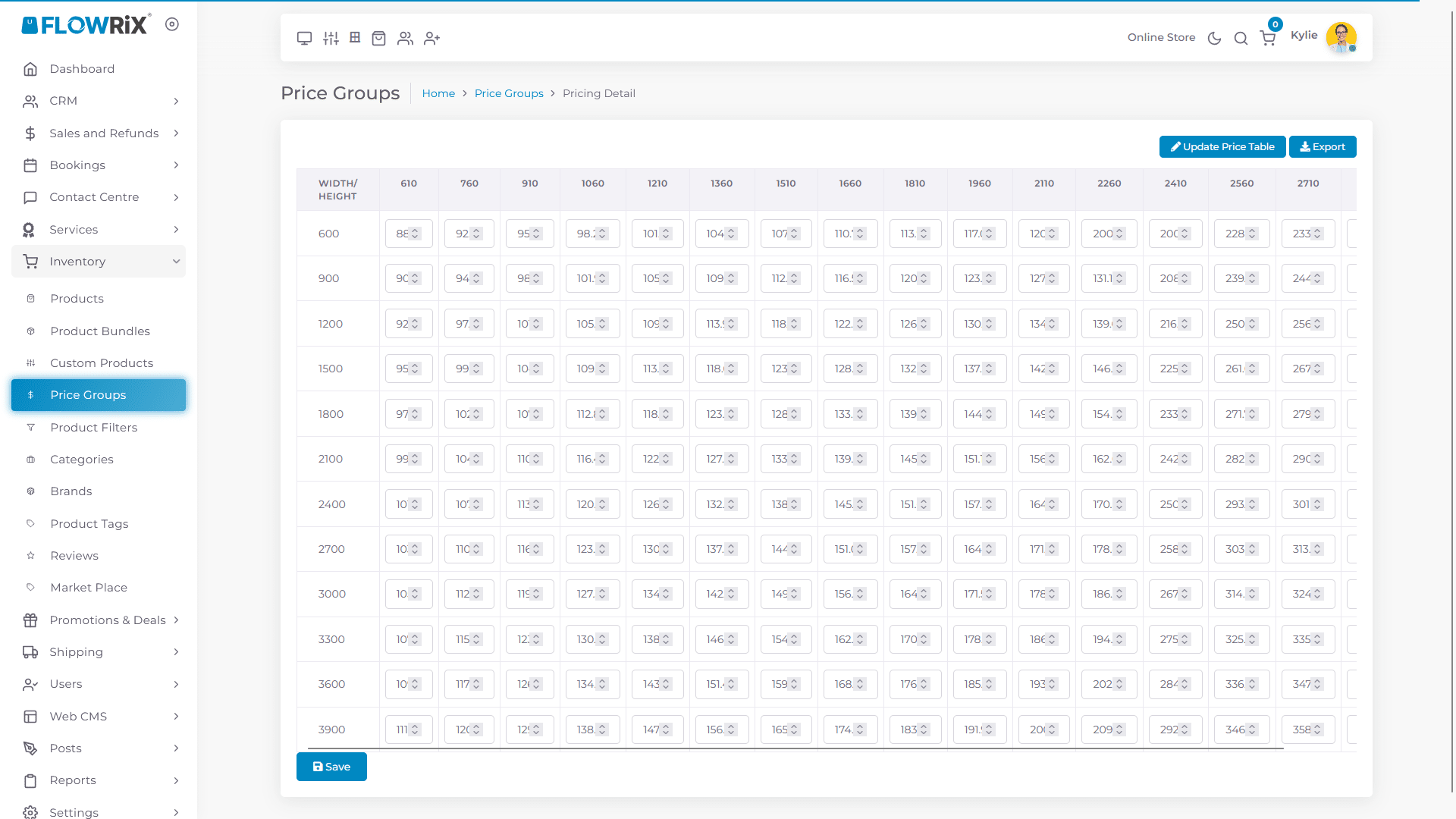
Click Save to publish new price
Frequently Asked Questions
- How do I increase or decrease the price by a percentage using the 'Update Price Table' feature?
To update the price by a certain percentage, type the desired percentage into the update field and click 'Save'. To decrease the price, use a minus sign before the percentage value.
- What does clicking 'Save' do after updating the price table?
After updating the price table, click 'Save' to publish the new prices and make them visible to customers.
- How do I reduce the price by a fixed dollar amount instead of a percentage?
To reduce the price by a fixed amount, change the 'Price Type' to 'Fixed Amount', then type a minus sign followed by the dollar amount you want to reduce from each cell. For example, '-5' will reduce each price by $5.